
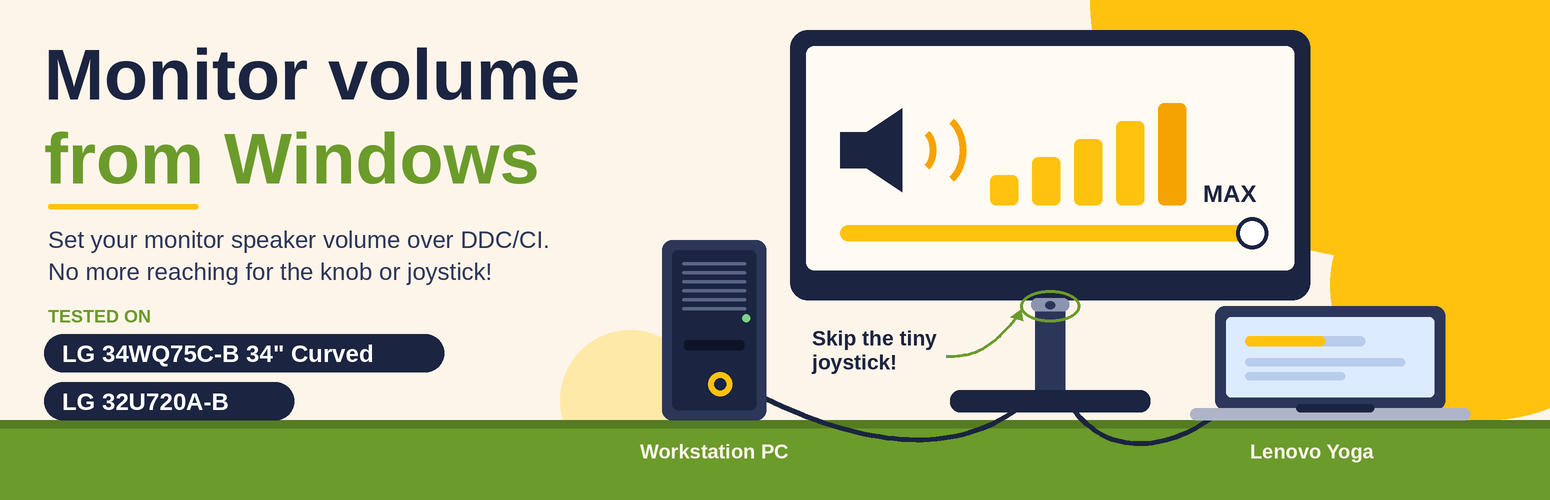
I use an LG monitor with both my Windows 11 PC and my Mac mini. The monitor has built-in speakers. On the Mac, there is a free app called MonitorControl, available on the Mac App Store. It lets me set the monitor’s speaker volume from the keyboard. No problem there. On Windows, it was a different story. The Windows volume slider only works within the level already set on the monitor. If the monitor’s own volume is low, the slider in Windows can only go as high as that. So I kept reaching behind the screen to turn the knob. Every time.
I looked around for a Windows app that does this properly. I couldn’t find one I trusted. So I got one made.

How it was made
I did not write this code myself. I vibe-coded it with Claude Code, mostly with the Sonnet 5.5 model. I described what I wanted and gave it the URL to the GitHub repo for the Mac App, Monitor Control. I then tested the app Claude Code built on my monitors and asked for changes until it worked. Overall, it took me about an hour or less to do this. Later, submitting it to the Microsoft Store took another hour, mostly spent navigating the Microsoft Partner Centre Portal. Surprisingly, Microsoft approved the app in a few hours.
I have tested it on two monitors: the LG 34WQ75C-B and the LG 32U720A-B. The 32U720A-B was connected via USB-C.
What it does
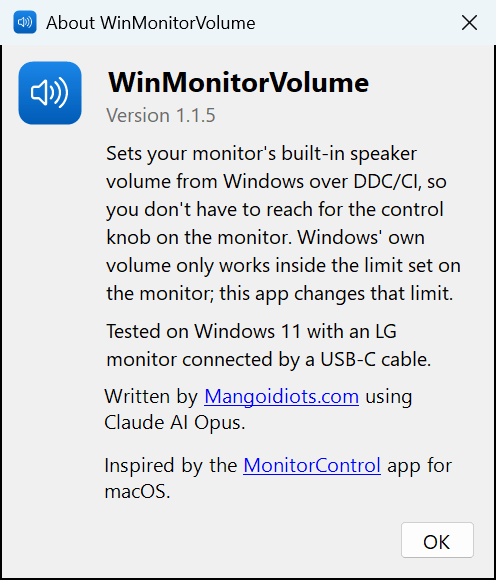
The App talks to the monitor directly and sets the speaker volume. That is all.
- A slider to set the volume
- A “Set to MAX” button
- An optional icon in the system tray with 0%, 50% and 100% presets
The part I like most
You can tell it what to do when you sign in to Windows. One choice is to just sit in the tray. The other choice is to set the volume to 0%, 50% or 100%, and then exit. If you choose the second one, the app starts, sets the volume and closes itself. No window. It doesn’t stay in memory, and it doesn’t waste your computer’s power. Its job is done, so it goes away.
I feel this is a good way to build small tools. If a program has nothing more to do, it should not keep running. Simple.
For the curious
Why does this problem happen?
The monitor has its own volume level. It is a hardware setting on the monitor’s amplifier. The Windows slider does not change that. It only scales the signal that Windows sends to the monitor. So it can never go louder than what the monitor itself is set to.
How does the app fix it?
It sends a small command to the monitor, over the same cable that carries the picture, and asks the monitor to change its own volume. It is like pressing the volume button on the monitor, but from the PC.

What is DDC/CI?
It stands for Display Data Channel / Command Interface. It is a standard way for a computer to talk to a monitor over the display cable. This way, you can control brightness, contrast, input selection, and volume. You must enable it in the monitor’s menu. Usually it is on already.
DDC/CI is a monitor standard. It is not a Windows thing. On the Mac, MonitorControl uses it. On Linux, a tool called ddcutil uses it. This app is the Windows one.
Is it only for USB-C?
No. DDC/CI travels on the display cable, so HDMI, DisplayPort and DVI (even old VGA) can carry it. USB-C works when it is carrying video (DisplayPort Alt Mode). There are two catches. Docks, hubs, KVM switches and some cheap adapters can block it. If the app says the monitor didn’t respond, try a direct cable. Also, the monitor must offer a volume control over DDC/CI. Not every monitor does, and some support only brightness. To be honest, I have tested it with USB-C and 32U720A-B and with DisplayPort and 34WQ75C-B.
How to get it
Get it from the Microsoft Store. It is free and available here.
Please use the Store version. Windows 11 blocks apps downloaded from the internet if they aren’t signed, and SmartScreen shows a scary warning. Some PCs block them completely. The Store version is signed by Microsoft, so it just installs and runs.
The source code is on GitHub for anyone who wants to look at it or build it. It is free and open source.
Things to know
- The app collects no data and does not connect to the internet.
- Other monitors with DDC/CI volume support should work too. If you try it on yours, do tell me how it went.
Discover more from Mangoidiots.com
Subscribe to get the latest posts sent to your email.